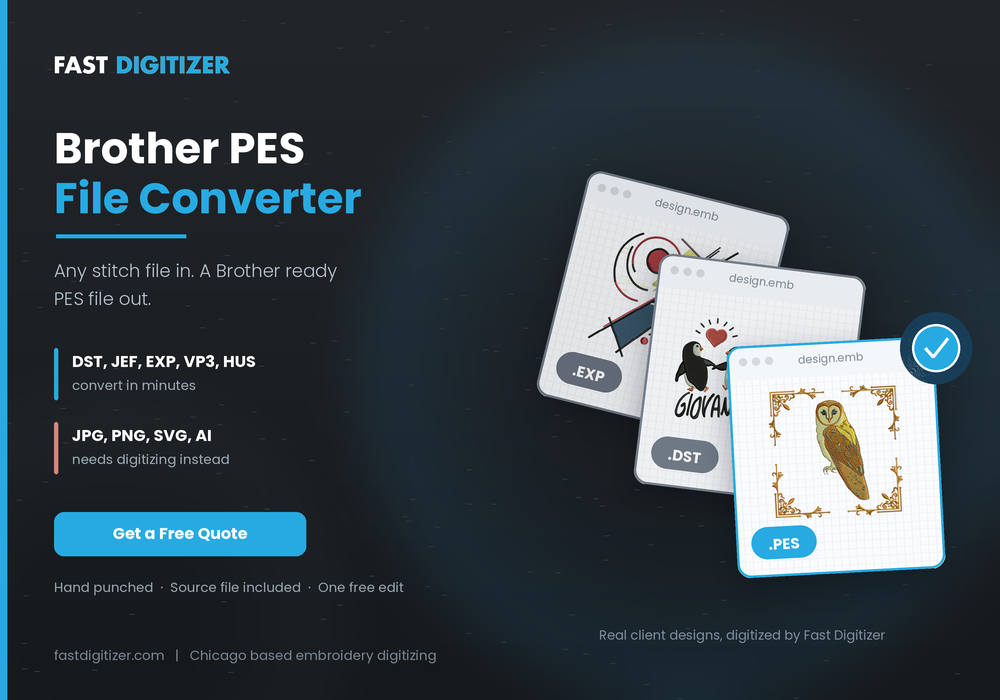
A Brother PES file converter changes an existing embroidery file, such as a DST or JEF, into the PES format your Brother machine reads natively. It does not turn a photo or a logo image into embroidery, although plenty of websites suggest otherwise. Understanding that difference saves most people a wasted afternoon, so this guide covers what conversion genuinely does, which tools work, and where the process quietly breaks.
What a Brother PES File Converter Actually Does
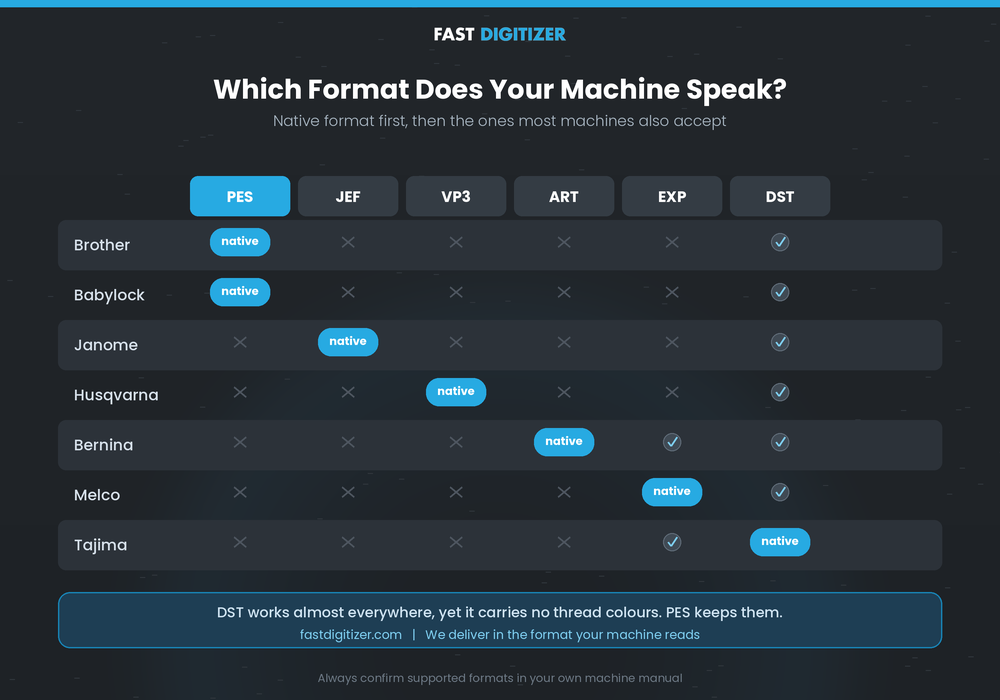
PES is the native format for Brother and Babylock machines. Unlike a picture file, a PES file stores stitch coordinates, jump and trim commands, colour stops and hoop information. A converter reads that stitch data from one embroidery format and rewrites it into the PES structure, so nothing new gets created during the process.
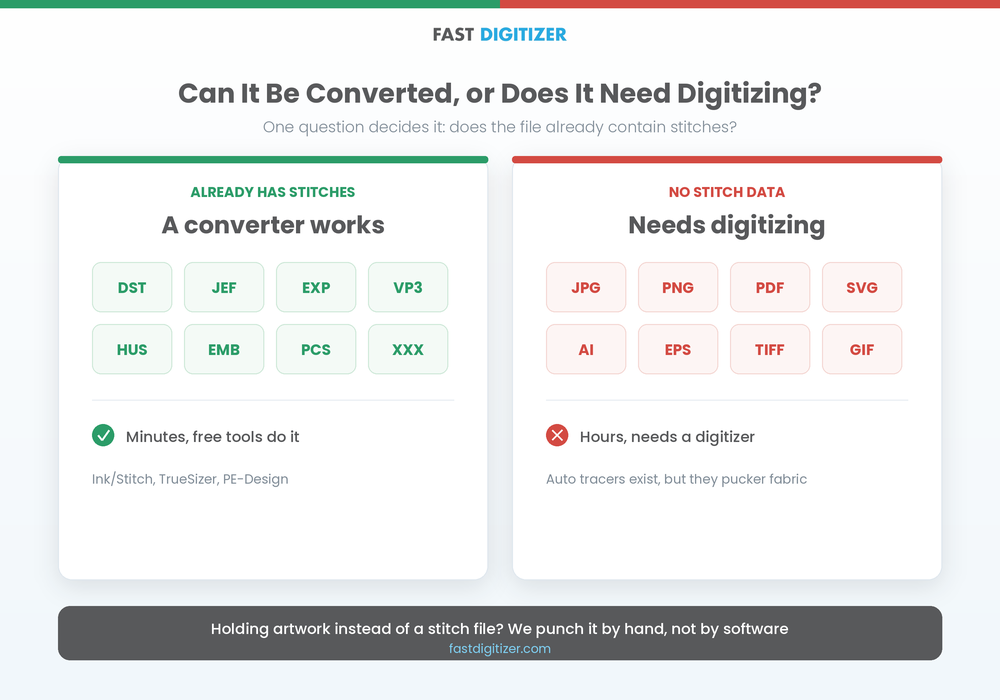
That distinction matters enormously. If your source file already contains stitch data, a Brother PES file converter works reliably. If your source is a JPG, PNG, PDF or vector logo, no converter can produce a usable file, because the stitch data simply does not exist yet.
PES vs DST: Why the Format Choice Matters
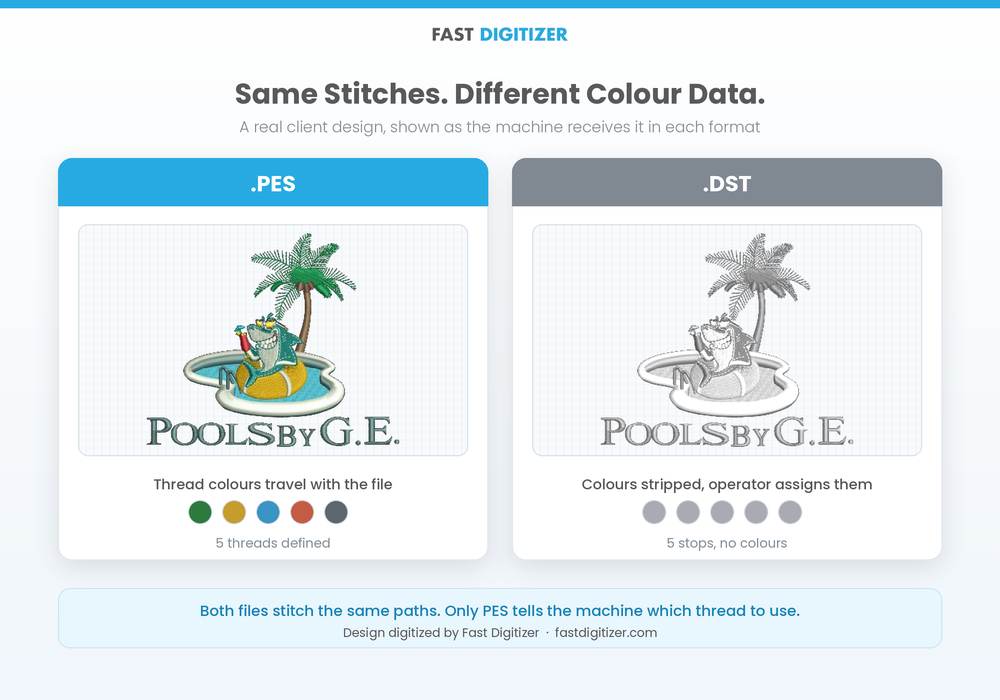
Meanwhile, DST is the universal commercial format, supported by almost every machine brand. However, it stores stitch positions without thread colours, so your machine simply prompts for a colour change and leaves the choice to the operator. PES carries the colour sequence with the design, which is why Brother owners generally prefer it.
In practice, the effect shows up immediately. Send a twelve colour design to a Brother as a DST and the machine will stitch every path correctly, yet the colours default to generic values. You then rebuild the thread list by hand. Send the same design as PES and the sequence arrives intact.
Beyond colour, PES also carries hoop data and machine specific settings. Consequently, files converted properly to PES tend to load with fewer surprises on Brother hardware.
When a Brother PES File Converter Cannot Help
This is the single biggest misunderstanding in embroidery, and it costs beginners real money. Converting an image to PES is not conversion at all. It is digitizing, which means a person decides every stitch type, angle, density and underlay so thread behaves correctly on fabric.
In fact, websites promising instant JPG to PES results are simply running automatic tracing. The output looks acceptable on screen, yet it typically puckers knits, breaks thread, and closes up small lettering because nothing in the process accounts for how fabric moves under a needle.
Free and Paid Brother PES File Converter Options
Several tools work well as a Brother PES file converter, and the right choice depends on your platform and budget rather than on brand loyalty.
Ink/Stitch (free, Windows, Mac and Linux)
Ink/Stitch is open source and runs as an extension inside Inkscape, so you install Inkscape first and add Ink/Stitch on top. It both converts and digitizes, which makes it the most capable free option available. Version 3.3.0 arrived on 31 July 2026, adding a cross stitch type with a setup assistant, new lettering fonts, and a simpler way to build even width satin columns.
Wilcom TrueSizer
Meanwhile, TrueSizer is a long standing free viewer and converter from Wilcom. It reads most common embroidery formats and writes several, which covers straightforward format changes. Editing power is limited compared with paid software, although that is rarely a problem for pure conversion work.
Brother PE-Design
PE-Design is Brother’s own Windows software, and it remains the most reliable route for PES specifically. Its Design Database includes a batch convert function, so you can select multiple files and rewrite them to PES in one pass. Because it is made by Brother, it also handles PES version selection cleanly.
Embrilliance and StitchBuddy
Notably, both run natively on Mac, which matters because most embroidery software is Windows only. Embrilliance is modular, so you buy the pieces you need, while StitchBuddy focuses on viewing, converting and light editing.
Browser based converters
Free online tools handle simple DST to PES swaps acceptably. However, treat them carefully. Many strip colour data, few let you choose the PES version, and some upload your artwork to servers you know nothing about. For client work, desktop software is the safer habit.
How to Use a Brother PES File Converter Step by Step
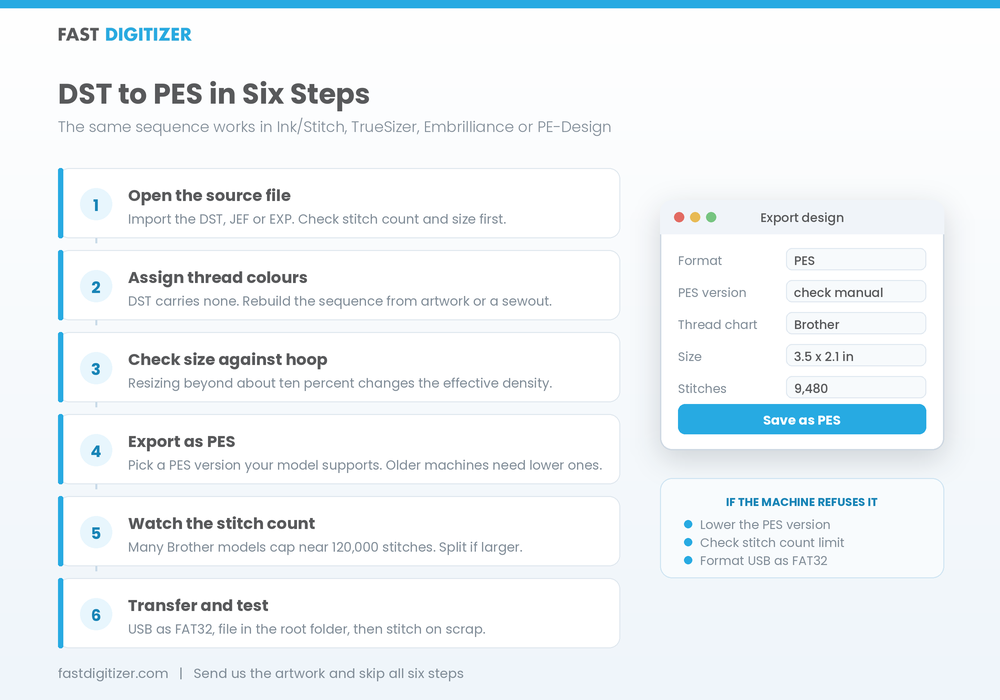
The process below applies to any Brother PES file converter, since the underlying steps barely change between them.
1. Open the source file. Import your DST, JEF, EXP or other stitch file into the software. Check the stitch count and the design dimensions before doing anything else.
2. Assign thread colours. If the source was a DST, the colour information is missing entirely, so you rebuild the sequence manually. Work from the original artwork or a sewout photo rather than guessing.
3. Check the size against your hoop. Confirm the design fits your hoop before exporting. Resizing a stitch file beyond roughly ten percent changes the density, since stitch counts stay fixed while the area grows.
4. Export as PES. Choose PES as the output format and select a version your machine supports. Older Brother models need lower PES versions, so check your manual if the machine refuses the file.
5. Watch the stitch count. Many Brother models cap designs at around 120,000 stitches. Larger designs need splitting into sections, and your manual states the limit for your specific model.
6. Transfer and test. Copy the file to a USB drive formatted as FAT32, placed in the root directory rather than inside folders. Then stitch a test on scrap fabric before touching a real garment.
Checks to Run After Using a Brother PES File Converter
A Brother PES file converter succeeds far more often than it fails, yet the failures are expensive. Therefore run these four quick checks every time.
- Colour count and order. First, compare the thread list against the original, since a converted DST arrives with generic colours.
- Dimensions in inches. Some converters shift units, so verify the finished width rather than trusting the preview.
- Stitch count. Similarly, a sudden jump usually signals that density settings changed during export.
- Trims and jumps. Finally, excess jump stitches mean more hand trimming for your operator.
Above all, run a test sew. A converted file can look flawless on screen while puckering the moment it meets performance knit.
Common Problems and How to Fix Them
The machine will not read the file. Usually the PES version is too new for the model. Export again at a lower version, and confirm the USB drive is FAT32 with the file in the root directory.
Colours come out wrong. The source was almost certainly a DST. Rebuild the thread sequence in your software and export a fresh PES rather than fixing it at the machine each time.
The design puckers. A Brother PES file converter never changes density, so the problem sits in the original digitizing or in your stabiliser and hooping. Consequently, converting again fixes nothing.
Small text fills in. Converting cannot rescue lettering that was digitized too small. Most digitizers treat roughly 5 mm, about 0.2 inches, as the practical minimum height for block letters.
Brother PES File Converter FAQs
Does Brother have a digitizing software?
Yes. Specifically, PE-Design is Brother’s own digitizing and editing software for Windows, and it covers digitizing, editing, format conversion and PES version control. Brother also offers the Artspira app for wireless design transfer to compatible machines.
Can I convert JPG to PES embroidery file?
No Brother PES file converter can do this. A JPG contains pixels, not stitches, so producing a PES means digitizing the artwork from scratch. Tools advertising instant JPG to PES results are auto tracing, and those files commonly pucker fabric and break thread on real garments.
Does Brother use PES?
Yes. PES is the native format for Brother and Babylock machines, so it carries thread colours, stitch order and hoop data. Most Brother models also read DST, although DST arrives without any colour information attached.
How to convert embroidery files to PES?
Open the stitch file in Ink/Stitch, Wilcom TrueSizer, Embrilliance or PE-Design, rebuild the thread colours if the source was a DST, confirm the design fits your hoop, then export as PES at a version your machine supports. Finally, test stitch before production.
Is there a free Brother PES file converter?
Yes. Ink/Stitch is free and open source, and Wilcom TrueSizer has long been available at no cost for viewing and converting. Both handle standard format changes well, so paid software is only necessary once you need serious editing or digitizing power.
Why does my Brother machine reject a converted PES file?
Generally, three causes account for most cases. The PES version may be newer than the model supports, the stitch count may exceed the machine limit, or the USB drive may not be formatted as FAT32 with the file in the root directory.
Does converting change stitch quality?
No, although that surprises people. Conversion rewrites the same stitch data into a different container, so a badly digitized design stays badly digitized afterwards. Quality problems trace back to the original file rather than to the conversion.
Choosing the Right Path
If you already hold a stitch file, a Brother PES file converter solves the problem in minutes and free tools handle it perfectly well. If you hold artwork instead, no converter exists that will do the job, and understanding that early prevents a great deal of frustration. Either way, test stitch on the real fabric before production, because the machine is the only honest reviewer.